Submitting Cases

Find out how to create and submit a case

Acteon

  • Create a new folder on your Desktop (right click anywhere on your Desktop where you do not already have an icon and go to New --> Folder) and put the patient's name on the folder
  • Open the patient history, right click on the thumbnail image of the CBCT scan you want to send to SeeRays, and select 'Export DICOMDIR'
  • In the window that appears, browse to the Desktop, click on the folder you created for this patient, and click the 'Select Folder' button
  • Once the 'DICOMDIR created successfully' message appears, click 'OK'
  • When the export is complete, there will be several hundred DICOM files in the folder you created on the Desktop for this patient.
  • Once the scan has finished saving, drag and drop the folder which was created on the desktop onto the case inside SeeRays.
Anatomage (Osteoid)

  • Create a new folder on the Desktop (right-click anywhere you don't already have an icon and go to New --> Folder) and name the folder with the patient's name
  • Open the scan in Anatomage/TxStudio
  • Once scan is open, go to File --> Save As (not 'Save As Project')
  • Choose 'Multi-file DICOM with .dcm extension' and click OK
  • Select the folder on the Desktop that was created with the patient's name on it (step 1 of these instructions) as the location to save the scan
  • For Compression, choose Uncompressed and in the Resample area, make sure the X, Y, and Z dropdown menus are all set to 1:1
  • Once the scan has finished saving, drag and drop the folder which was created on the desktop onto the case inside SeeRays.

Carestream

  • Create a new folder on your Desktop and name it with the patient's name scan date
  • Open the CBCT scan in the CS3D software and click on the "Export Volume" button (it looks like a skull with an arrow pointing to the right)
  • Browse to and select the folder you created on the desktop with the patient's name on it as the "Output Directory". This is important.
  • Make sure “Select axial matrix size” is set to whichever value is labeled “Same as source”
  • Make sure “Select slice thickness” is set to whichever value is labeled “Same as source” and leave “Create isotropic volume” unchecked
  • Under "Output file format", choose "CT (one file per slice)"
  • Under “Select compression”, choose “Uncompressed”
  • Make sure “Anonymize” and “Create DICOMDir” are both unchecked
  • Click “Export”
  • Once the scan has finished saving, drag and drop the folder which was created on the desktop onto the case inside SeeRays.

Genoray

HDX WILL

i-CAT Vision

ImageWorks

J. Morita

KaVo

  • Click on the patient record in the patient list
  • In DTX Studio Home, click More in the action pane and select Export data .
    In DTX Studio Clinic, click Export and select Data .
  • Select the patient data to export. To Filter out the 3D image! Click filter icon and choose 3D X-Ray.
  • Click Browse and choose desktop
    Choose Single File
    Uncheck the ‘Anonymize Patient’ box
  • Click Export.
  • Once the scan has finished saving, drag and drop the folder which was created on the desktop onto the case inside SeeRays. The folder name is generally the patients name_scan date.
  • Create a new folder on the Desktop (right-click anywhere you don't already have an icon and go to New --> Folder) and name the folder with the patient's name
  • Open the scan in Anatomage/Invivo
  • Once scan is open, go to File --> Save As (not 'Save As Project')
  • Choose 'Multi-file DICOM with .dcm extension' and click OK
  • Select the folder on the Desktop that was created with the patient's name on it (step 1 of these instructions) as the location to save the scan
  • For Compression, choose Uncompressed and in the Resample area, make sure the X, Y, and Z dropdown menus are all set to 1:1
  • Minimize or close Anatomage/TxStudio
  • Once the scan has finished saving, drag and drop the folder which was created on the desktop onto the case inside SeeRays.

Midmark

  • Create a new folder on the Desktop and name the folder with the patient's name
  • Open the desired patient scan in 3DV software
  • Click Custom Export to access the Custom Export window:
  • On the Custom Export window, select the Export to DICOM:
  • Make the following selections:
  • Define set - To prepare images for export, select 'Following Slices', then 'Axial Slices' and set Pitch and Thickness to the smallest/lowest number possible:
  • Destination - Select 'Folder' and click the Browse button to select the folder on the Desktop that is named with the patient's name.
  • Image Options - Set Window/Level and Matrix size to 'Current':
  • Export Options - Uncheck all boxes:
  • Script/Application - Leave this blank.
  • After completing these selections, click 'Run' to export the DICOM:
  • Once the export is finished, go to the Desktop, right-click on the folder that's named with the patient's name, go to 'Send to', and choose 'Compressed (zipped) folder'. This will create a new icon on the Desktop that will have the same name as the folder you just right-clicked on, but the icon will most likely be a folder with a zipper on it. That is the file we need.
  • Upload the folder with a zipper on it (which is a .zip file) to the patient’s case on the SeeRays website.

NewTom

Owandy

  • Create a new folder on your Desktop (right click anywhere on your Desktop where you do not already have an icon and go to New --> Folder) and put the patient's name on the folder
  • Open the Owandy software, type in the patient's name and click Find
  • After the patient's information appears, click on the “mouth” icon located on the left-hand side of the screen
  • Locate the CBCT scan you wish to send to SeeRays, right click on the 3D image, and select 'Export DICOM'
  • For the export location, select the folder you created on the Desktop for this patient and click 'OK'
  • When the export is complete, there will be several hundred DICOM files in the folder you created on the Desktop for this patient. Compress that folder into a .zip file by right clicking the folder, going to 'Send to', and choosing 'Compressed (zipped) folder'.
  • Your computer will create a new icon on your Desktop with the patient's name on it that will likely look like a folder with a zipper or a 'z' on it. Upload that file to the patient's case on the SeeRays website.

Pancorp

  • Right click on your desktop and create a new folder. Name the folder with your patient’s name.
  • In the “Master Database,” select the patient's scan but do not open it. Under “Data Source” (on the left of the screen), click on the plus (+) sign next to “My Computer” to expand the options. Left click on the patient's scan and drag it to the folder you created on the Desktop for the patient.
  • After the DICOM exports and saves, go to the patient’s folder on your desktop and verify that the .dcm files were exported correctly. You should see several hundred files .dcm files in the folder.
  • Drag and drop the folder to the patient's case on the SeeRays website.

Planmeca

  • On your Desktop, create a new folder. Right-click anywhere you don't have an icon, go to 'New', and choose 'Folder'. Name the folder with the patient’s name
  • Open your Romexis software, click on the Patients icon, and open the scan of the patient
  • Once the scan is on-screen, click the Output button on the top toolbar and select Export Volume. (Note: If you are using Romexis version 6, click the Export button on the top toolbar)
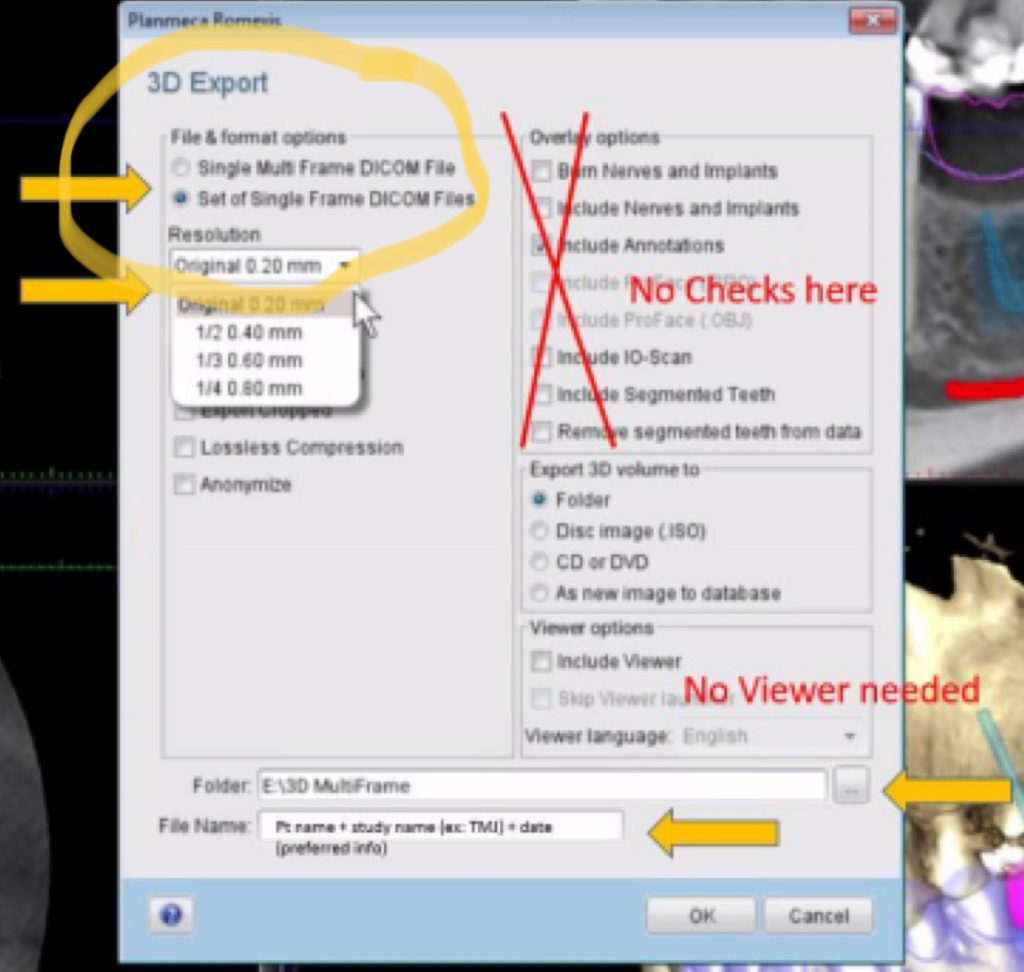
  • Select the following settings:
    File & Format Options: Set of Single Frame DICOM Files
    Resolution: Original
    Make sure 'Anonymize' is not checked
    Overlay options: (NO CHECK MARKS)
    Export 3D Volume to: Folder
    Viewer Options: (NO CHECK MARKS. VIEWER IS NOT NEEDED)
    Folder field: Click the “…” box at the far right. Browse to and select the folder you created on your Desktop with the patient’s name on it.
    File Name field: We recommend entering the patient's first and last name. You can also include information about the type of scan it is (example: Mandible, Maxilla, TMJ/etc.)
  • Select OK to export the DICOM files
  • Once the scan has finished saving, drag and drop the folder which was created on the desktop onto the case inside SeeRays.

PreXion

  • Create a new folder on your Desktop and put the patient's name on the folder (right-click anywhere on your Desktop where you don't already have an icon and go to New --> Folder)
  • Open the PreXion software and right click on the patient's name and go to 'Study Management'
  • In the menu that appears, choose 'Download Study'
  • You will be prompted to choose the location to save the DICOM files. Select the folder you created on your Desktop with the patient's name and click 'OK'
  • When the export is complete, there will be several hundred DICOM files in the folder with the patient's name on it.
    Once the scan has finished saving, drag and drop the folder which was created on the desktop onto the case inside SeeRays.

Rayscan

  • Create a new folder on your Desktop and put the patient's name on the folder (right-click anywhere on your Desktop where you do not already have an icon and go to New --> Folder. And then put the patients name in the highlighted area)
  • Open the Rayscan software and in the search tab, select the correct dates, and type in the patient’s name. Click the orange magnifying glass button to search.
  • Select the correct file and click “export”. After you see a pop-up box verifying that the patient information has been added to the export tab, click “OK”.
  • Next, click on the “export” tab and select the correct patient information. On the right-hand side, you will have different exporting options. If you need the media type, select “USB.” For “detail path” click on the magnifying glass button. A pop-up will now appear for the save location. Select the folder that you made on the desktop and click “ok.” Type in the patient’s name next to “volume label” and for the “image format” select DICOM. Then, click on “export.”
  • Once the export reaches 100%, you will get a pop-up stating it is complete. Click “OK".
  • When the export is complete, there will be several hundred DICOM files in the folder with the patient's name on it. Compress the folder into a .zip file by right clicking the folder, going to 'Send to', and choosing 'Compressed (zipped) folder'.
    Your computer will create a new icon on your Desktop with the patient's name on it that will likely look like a folder with a zipper on it. Upload that file to the patient's case on the SeeRays website.

Sirona

  • Create a new folder on the Desktop and put the patient’s name on the folder
  • Open the CBCT volume (3D Exam) in SIDEXIS 4
  • Click the Output button at the top of the SIDEXIS 4 window
  • Choose DICOM Exam Export
  • In the window that comes up, click the “Settings” tab at the top and uncheck everything except 'Include main volume'
  • Click on the “Export” tab at the top and make sure the 'Anonymization' box is not checked. Click the button with three dots on it (which is a Browse button), browse to and double-click on the folder you created on the Desktop that has the patient’s name on it, and click “Save”
  • Click OK to begin the DICOM export
  • Once the scan has finished saving, drag and drop the folder which was created on the desktop onto the case inside SeeRays.
  • Create a new folder on your Desktop and put the patient's name on the folder
  • Open the patient's CBCT in SIDEXIS XG
  • Go to Image menu at the top --> Export DICOM --> Third Party Volume (DICOM)
  • A preview of the CBCT volume will load. For the profile, select either 'Third-Party Volume (Orthodontics)' or 'Third-Party Volume (Implantology)'. For the resolution, select the option that says 'Original resolution' and click OK in the lower-left corner.
  • Select 'dcm'
  • Make sure the 'Anonymize' checkbox is not checked
  • Select the folder you wish to export the DICOM files to. Click the button with three dots (...), browse to the Desktop, and double-click the name of the folder you created that has the patient's name on it
  • Click 'Save'
  • Click 'OK' to begin the DICOM export. You will see an animation of pieces of paper flying into a folder while the export is happening. Be sure to wait until the export is complete before moving on to the next step.
  • Once the scan has finished saving, drag and drop the folder that was created on the desktop into the case inside SeeRays

Vatech

  • Create a new folder on your Desktop and name the folder with the patient's name (right-click anywhere you don't already have an icon on the Desktop and go to New --> Folder)
  • Launch the Ez3D-i software and load the patient's scan
  • From the 'Main Menu', choose 'Export'
  • Ensure that the following buttons and boxes are selected:
    Local Disk
    DCM Files
    'Compression' should be set to 'Uncompressed', but if 'Uncompressed' is not an option, select 'Lossless'
    The 'Project File' box should NOT be checked
    The 'Viewer' box should NOT be checked
    Click 'Save'
  • Browse to the Desktop and locate the folder you created that has the patient's name on it and select that folder
  • The DICOM files will be exported and you will be notified when the export is complete
  • Once the scan has finished saving, drag and drop the folder which was created on the desktop onto the case inside SeeRays.
  • Right click on your desktop and create a new folder. Name the folder with your patient’s name.
  • In Vatech 3D Plus, open the scan, click on “Tools”, “Export”, and then click on “Memory”
  • Select the folder you created on your Desktop for the patient and then click 'OK' to begin the DICOM export
  • Once the DICOM export is complete, there will be several hundred DICOM (.dcm) files in the folder you created for the patient on your Desktop
  • Once the scan has finished saving, drag and drop the folder which was created on the desktop onto the case inside SeeRays.
  • In your Vatech patient list, select the patient and then right-click on their CBCT scan thumbnail image. Click “Export” in the menu and the CBCT files will begin preparing for export
  • On the next screen – Choose 'Local Disk'
  • Make sure 'Compress to .zip file' is unchecked
  • Click the Export button in the bottom-right corner and your computer will prompt you to select the export destination. Select the Desktop.
  • When the export is complete, you will have a folder for the patient on the desktop. Drag that folder into the "upload files" box on the SeeRays website.

About Us

SeeRays provides remote Oral and Maxillofacial Radiology interpretation services. Our reading services include CBCT, MRI scans, and 2D radiographs.

Our goal is to make a difference for the clinicians and their patients by paying strict attention to details and provide them with a thorough report.

Recent Articles

  • All Post
  • Articles

Next Courses

© 2025 SeeRays DX . All Rights Reserved.